Image Ads
Step 1: Upload Product Images
Upload clear, unobstructed product photos
Step 2: Enter Marketing Angle or Selling Point
Text Language
Aspect Ratio
Resolution
Number of Images
Create Ad Images
Import a product, configure creative angles, and generate high-converting ad creatives — one ad image per creative angle.
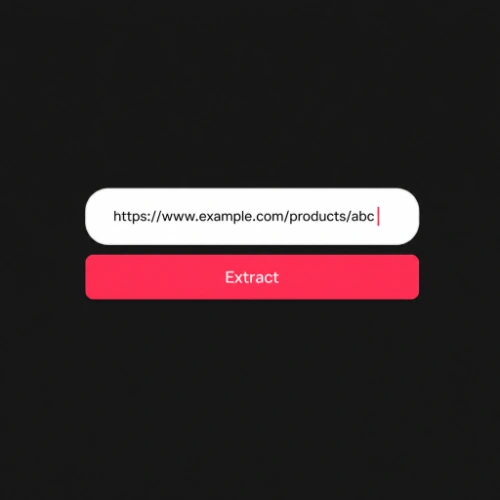
IMPORT PRODUCT
Paste a product URL or pick one from your library to auto-extract title, description, creative angles and images.
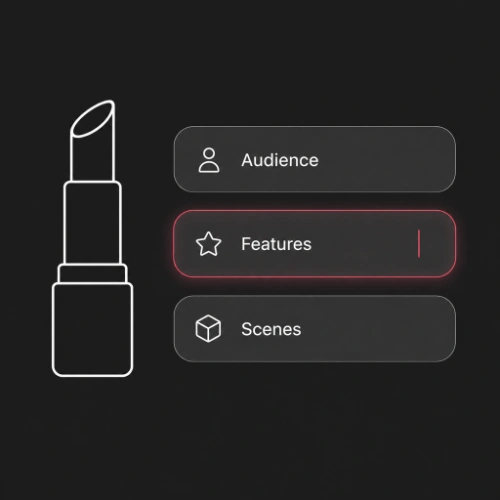
CONFIGURE CREATIVE ANGLES
Review the auto-generated creative angles and prompts; adjust aspect ratio and resolution as needed.
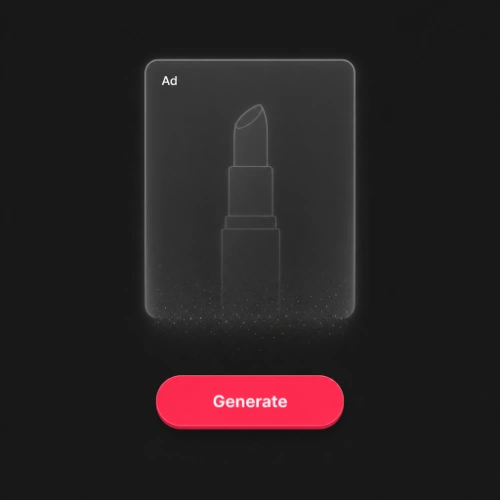
GENERATE AD IMAGES
Click generate and AI creates one ad creative per creative angle, ready for any ad platform.
Use Cases
1. Select the "URL Import" tab on the left and paste your product link. The system supports links from major e-commerce platforms such as Amazon, Shopify, and more. After pasting, click "Extract" or press Enter to start. Tip: Use the full product page URL for best results. Links from product listing pages may not extract all details.
2. The system auto-extracts the title, description, creative angles, and images. AI analyzes the product page and pulls key information: product title, description, selling points, category, and product images. It also generates creative angles — marketing-oriented prompts like "Problem-Solution", "Social Proof", or "Curiosity Hook" — each targeting a different buyer motivation. A review dialog will appear so you can verify and edit the extracted information before proceeding.
3. Confirm the creative angle and click "Generate" — AI creates ad creatives automatically. Clicking "Generate" triggers a two-step AI process: first it analyzes your product and reference images, then it generates a detailed prompt. You can review and edit the prompt before final generation. The result is a set of ad images tailored to your chosen creative angle, ready for use on any ad platform.
1. Select the "Custom" tab on the left. The Custom tab is designed for situations where you don't have a product URL — for example, when you only have product photos from a supplier, or the product isn't listed online yet. No product link or library entry is required. You start from scratch with just your images and ideas.
2. Upload your product images (up to 5). Click the upload area or drag and drop images. Supported formats: JPG, JPEG, PNG, WebP. Each image can be up to 15MB. Tip: Use high-quality, well-lit product photos for best results. Multiple angles of the same product help AI understand the product better.
3. Enter a creative angle and click "Generate" to create ad images. A creative angle is a marketing-oriented description of how you want the ad to present the product — for example, "Highlight the sleek design and premium materials" or "Emphasize the limited-time discount offer". After clicking "Generate", AI will analyze your images and creative angle, generate a prompt, and produce ad images. You can review and edit the prompt before final generation.
1. After a product is imported or selected, review the auto-filled creative angle. When you import via URL or select from the product library, the first creative angle is auto-filled in the Creative Angle field. This angle is AI-generated based on the product's selling points and marketing potential. You can keep it as-is, or modify it to change the direction of the generated ad.
2. Click "Generate" — AI will produce a prompt that you can review and edit. The generation process first analyzes your product and images, then creates a detailed prompt. The prompt appears in an editable text area where you can fine-tune specific elements: change the copy tone, adjust the layout description, swap the background style, or add specific text requirements. Tip: Small edits to the prompt can produce significantly different results. Try changing just one element at a time to see its effect.
3. Click "Next" to generate the ad image with your customized prompt. The final ad images will reflect your prompt edits — different copy, style, or composition compared to the default. If the result isn't quite right, you can re-edit and regenerate. Each generation task appears in the History tab on the right, where you can track progress and review results.
1. Import a product via URL or select one from the product library. Both the URL Import and Product tabs auto-fill product information including any selling points or creative angles stored in the product data. These serve as a starting point for your ad creation. If you haven't saved any products yet, use URL Import to quickly add one — the extracted data is automatically saved to your product library.
2. Edit the creative angle to reflect your desired selling point. Replace or modify the auto-filled creative angle with your own marketing focus — for example: "Limited-time 50% off — act now", "Eco-friendly materials for conscious buyers", or "Award-winning design recognized by industry experts". Tip: The more specific and emotionally engaging your creative angle, the more targeted the resulting ad will be. Avoid generic descriptions — focus on what makes this product stand out.
3. Click "Generate" to create ad images based on your custom selling point. AI will use your custom creative angle along with the product images and information to generate a tailored prompt, then produce ad images that highlight your specified selling point. You can review and edit the AI-generated prompt before final generation. This gives you full control over how your selling point is expressed in the final ad.